.png?width=250&height=59&name=OpenEd_logo_noborder%20(1).png)
OpenEd will reimburse you for approved educational expenses that are related to your student's education plan.
Stay informed: Brand-new devices like computers, tablets, Kindles and iPads that cost over $150 will remain school property for three years, with repayment required if your student withdraws early. See our policies page for more details.
In order to access your wallet funds, your student needs to be currently enrolled and demonstrating active participation in the program.
If you have a pending reimbursement when your student withdraws, that reimbursement will NOT be processed. We can only process reimbursements for current, active students.
What's Reimbursable vs. What's Not
We know that OpenEd families use their wallet funds to support their students' personalized learning in a ton of different creative ways. Since the possibilities are nearly endless, we can't list out every item that could possibly be reimbursed.
Instead, check out the articles below for a list of commonly approved expenses that align with most educational plans — along with a list of items that are never approved for reimbursement.
Still have questions about whether something's reimbursable? Reach out to us here!
Does your student have any missing learning logs?
Just so you know, we won't be able to process any of your reimbursements until your student has submitted their missing logs.
Don't worry - In the meantime, your reimbursement requests won't be cancelled. We'll process them as soon as your student is all caught up.
How To Request Reimbursement
Watch a short video overview of the process here!
Watch some minute-long overviews on how to submit specific types of receipts:
To get started, go to the Reimbursements menu option in your OpenEd platform. (This option will only appear after the school year's begun.)
On this page, you can see the status of any reimbursement requests you've already submitted.
To submit a new request, click on the + New Reimbursement button in the top right corner of the page.
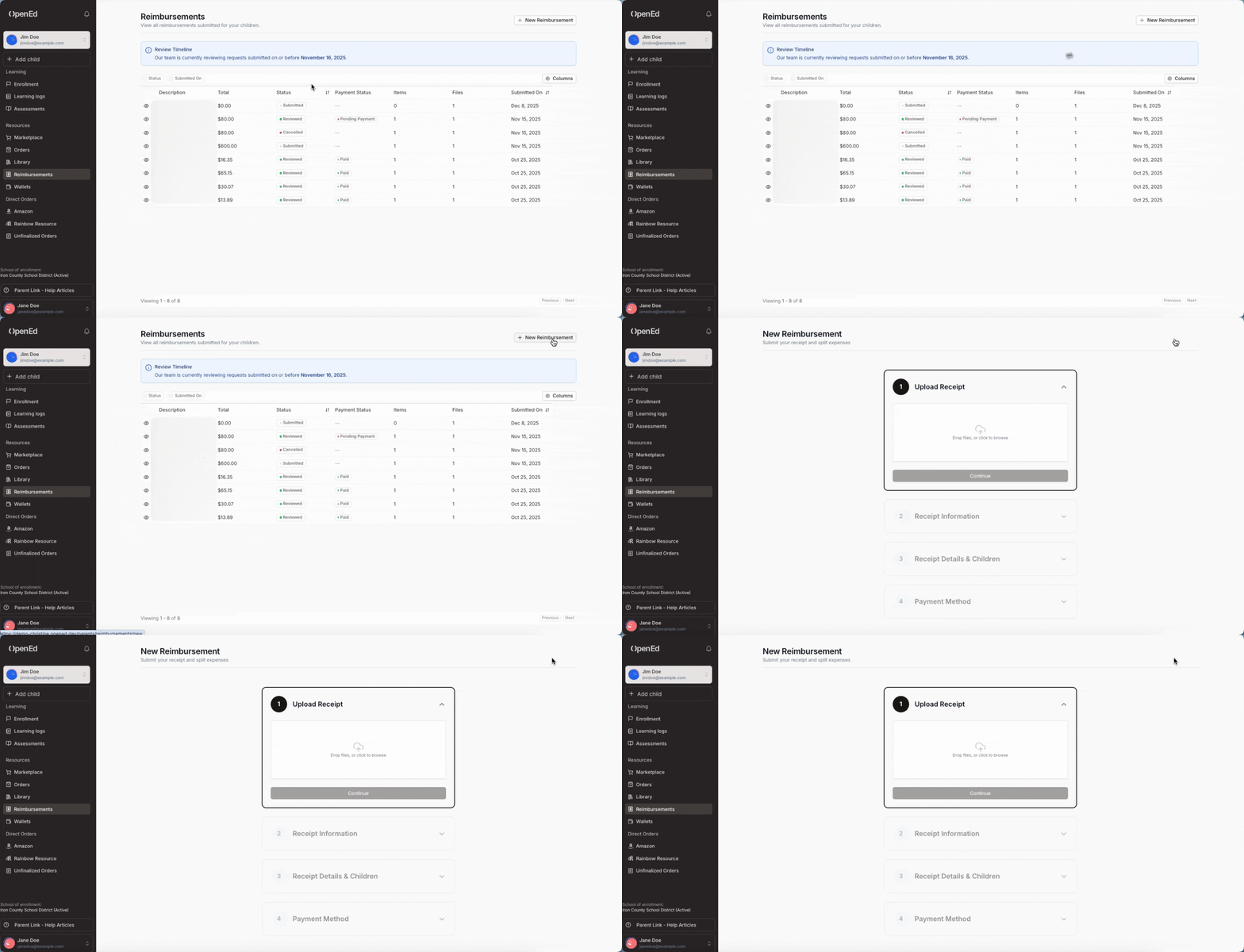
Step 1: Upload Your Receipt
The first thing you'll do is upload a picture or scanned version of your receipt.
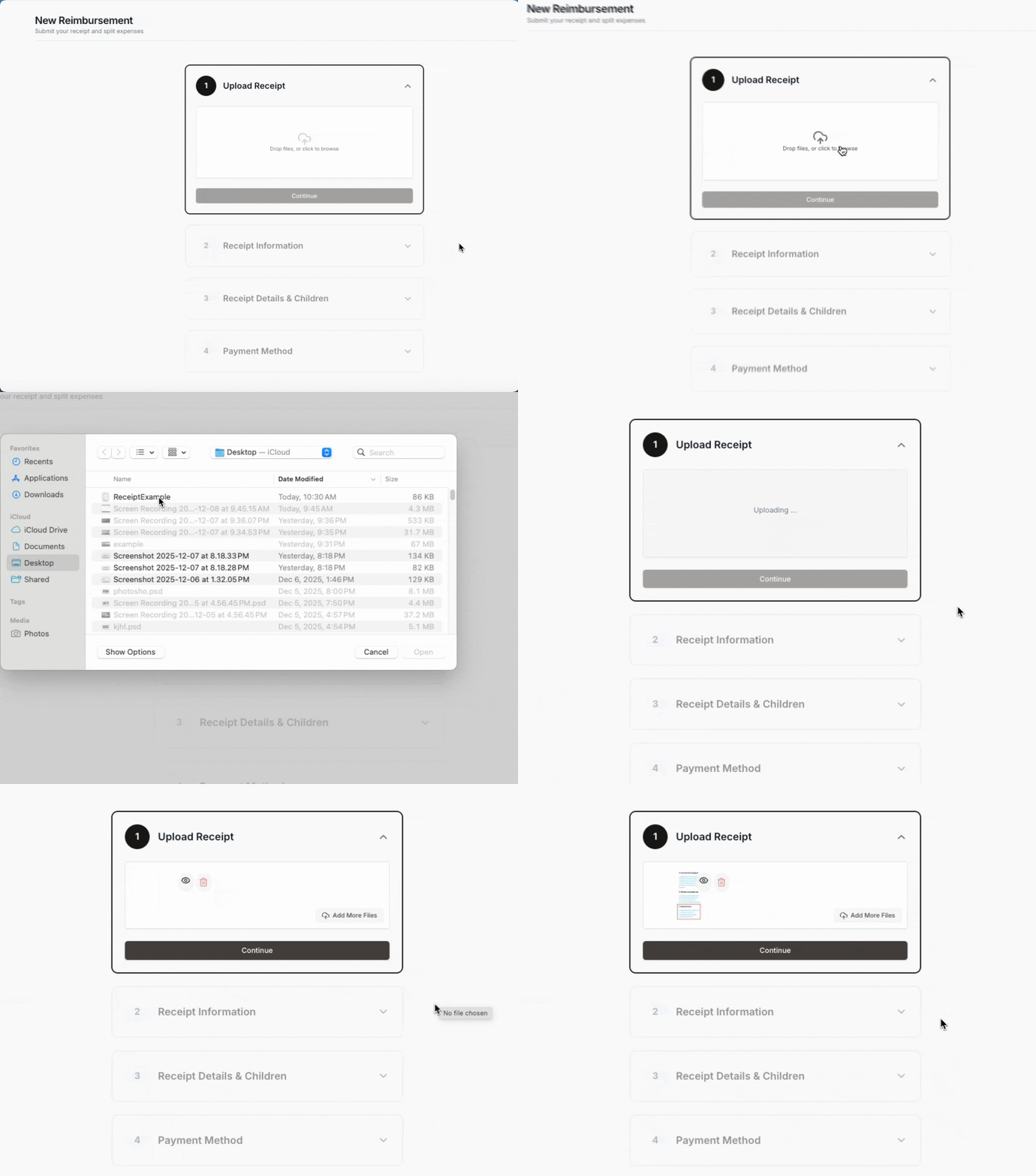
File Types To Use: Our receipt upload field accepts all image types (like JPG, PNG, GIF or HEIC), along with PDF files.
You can upload multiple files, but please make sure that you're only submitting one request per receipt!
To keep things simple and organized, start a new reimbursement request for each receipt you've got.
There's no limit on how many requests you can submit per school year.
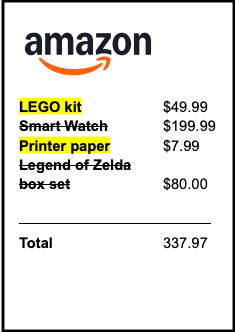
Prep your receipt like a pro: If your receipt includes both reimbursable and non-reimbursable items, we recommend using a highlighter to mark the items that you're requesting reimbursement for before you upload.
(You can also cross out the items that you're not requesting reimbursement for.)
Here's what that might look like:
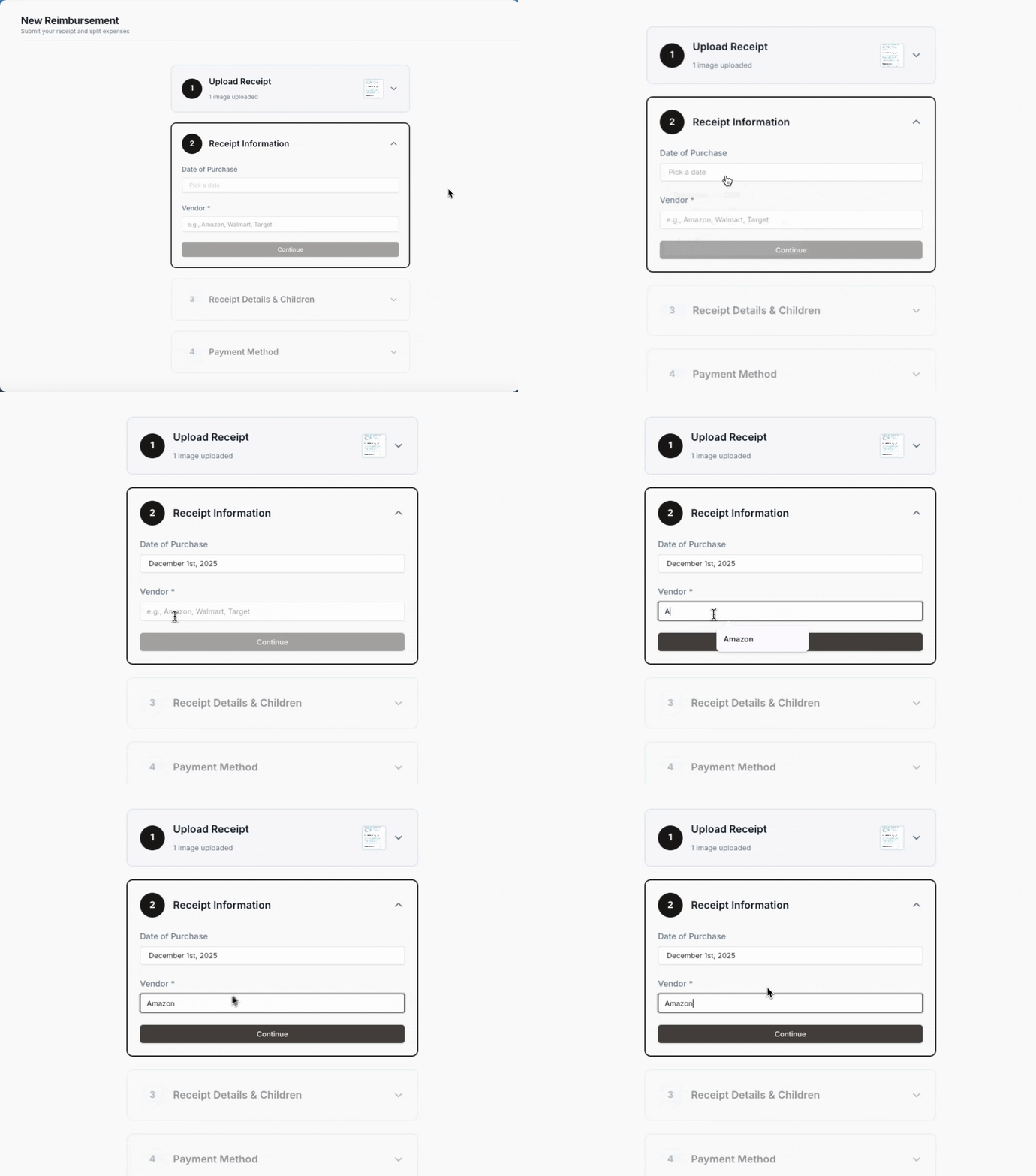
Step 2: Fill In Your Receipt's Info
After uploading your receipt, you'll be asked to fill in two details: the date of purchase and the vendor.
Step 3: Receipt Details & Children
Next, we'll ask for a bit more context about your purchase.
Add a short description (like "Math textbook" or "Art supplies"), the amount that needs to be reimbursed, and - optional, but recommended - what you intend to use this item for.
(That last field helps our team know how each item will be used to enhance your student's education, which makes it less likely that we'll bug you for further details!)
If your receipt includes a new device (meaning brand-new computers, tablets, Kindles and iPads that cost over $150), check off the checkbox labeled Does this receipt include a new device?
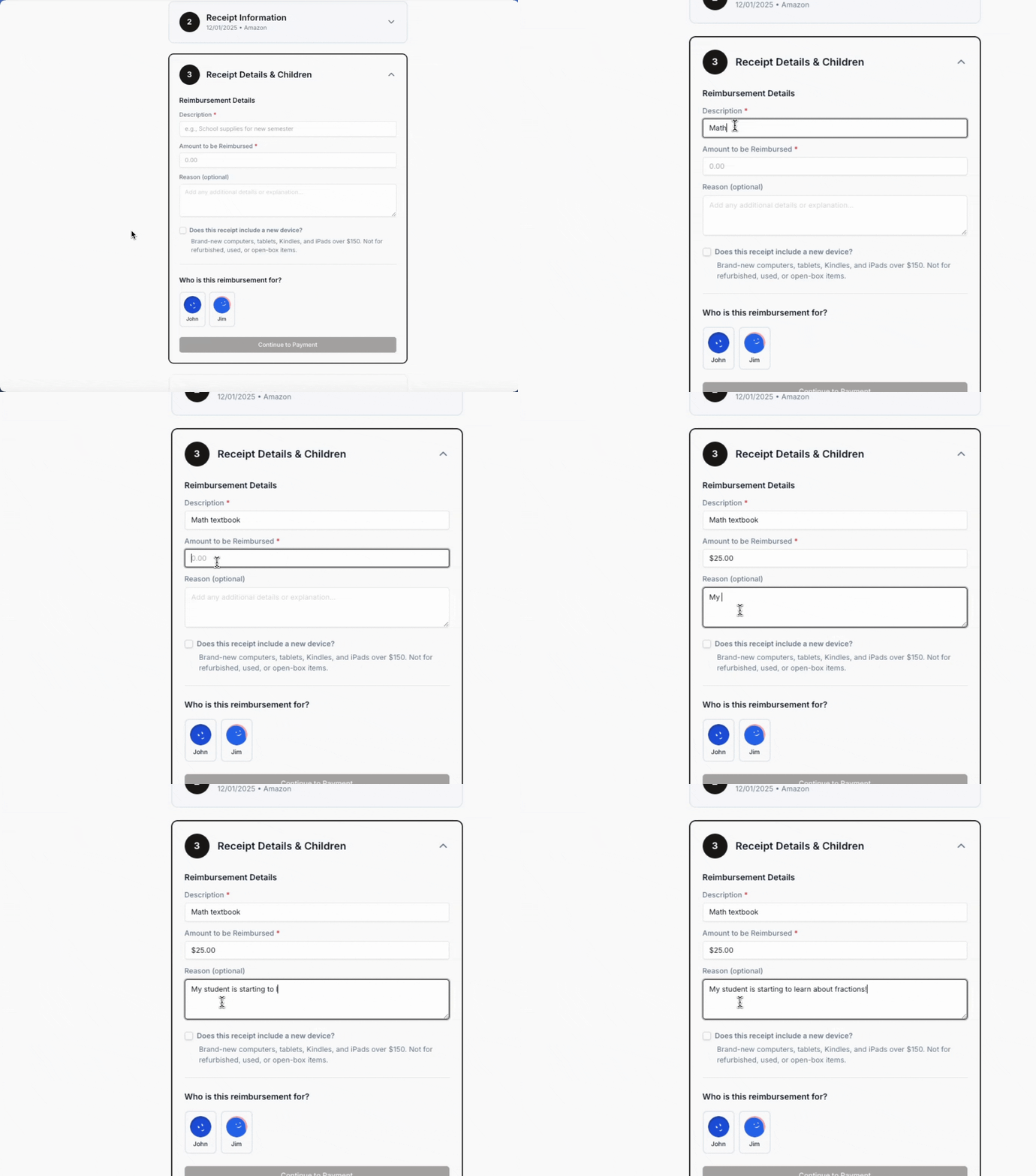
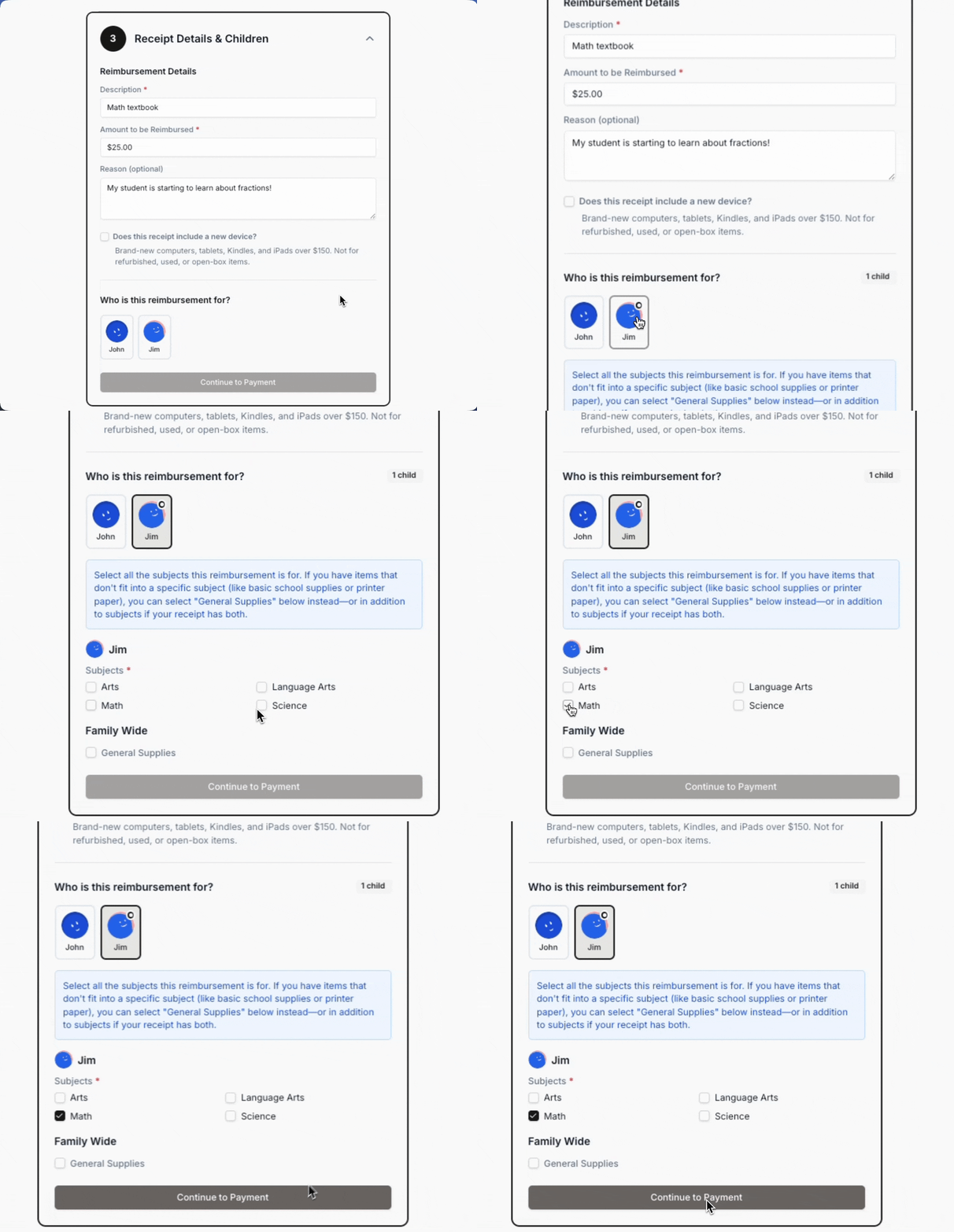
Finally, select which student (or students) this item is for.
Mark off which education plan subject(s) your purchase is related to.
If your item doesn't fit into a specific subject (like basic school supplies or printer paper), you can just check off General Supplies under the Family Wide option.
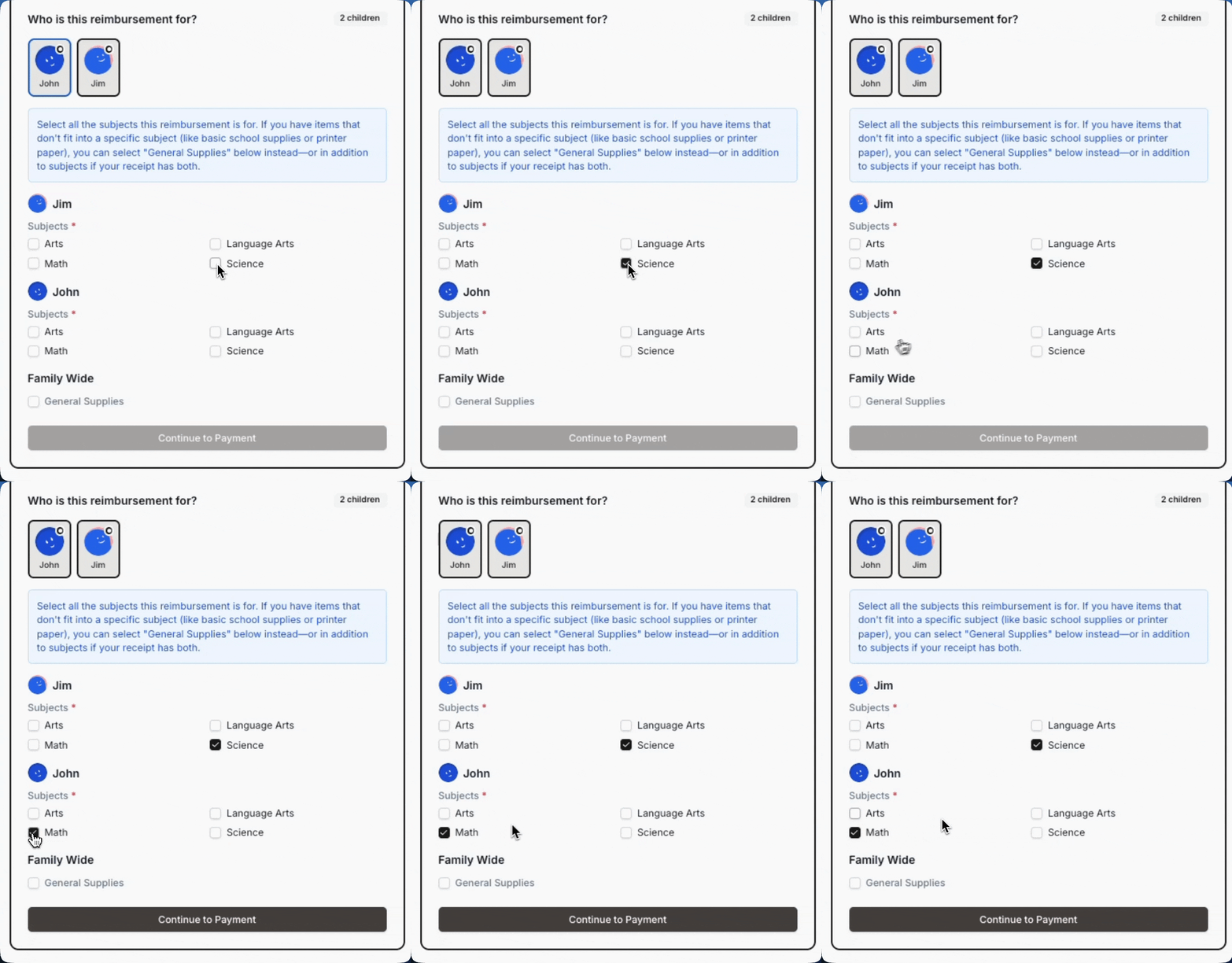
If your receipt includes items related to multiple students and multiple subjects, select the appropriate subject under each student's name.
For example, if my receipt includes a Science kit for Jim and a Math textbook for John, I'd select Science under Jim's name and Math under John's.
Tip: Instead of selecting General Supplies when you don't see the right subject, you should add that subject to your student's education plan as an independent study through the Enrollment menu.
Examples:
-
Ashley purchased a camera to help her son pursue his passion for photography. When submitting her reimbursement, she selected Photography as the related subject from her son's education plan.
-
Lisa purchased some baking supplies for his daughter, who's been trying her hand at some fun pastries. She tied her reimbursement request to the Culinary Arts elective on her daughter's education plan. She also added a note to OpenEd's staff that says "This cake decorating kit is helping my daughter learn some new techniques!"
-
James bought his son a new calculator. On his reimbursement request, he checked off Accounting I as the related subject.
-
McKenzie purchased some notebooks and pencils for her daughter to use in a few different areas of her personalized learning. When submitting her reimbursement, she selected General Supplies as the related category. She also added a note to OpenEd's staff that says, "These notebooks will be used for various subjects on my daughter's education plan."
Step 4: Payment Method
Very last step!
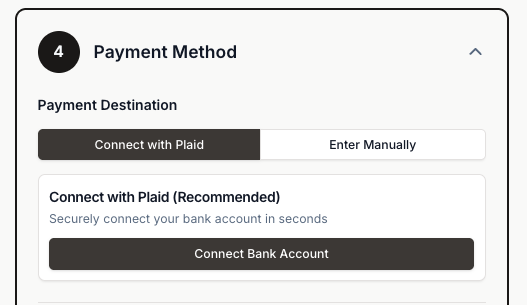
Pick how you'd like to receive your reimbursement.
You can choose to either connect your bank account using Plaid or enter your routing and account number manually.
How Plaid Keeps Your Data Safe
Plaid is an industry standard, highly secure vendor used by Citi Bank, Robinhood, Rocket Mortgage, Coinbase, and many more.
When you link your bank account with Plaid, your information is securely stored and managed; OpenEd will never see your private credentials. We'll just ask Plaid to transfer funds to you on our behalf as part of the reimbursement process.
For more info on Plaid's security protocols, take a look at their Trust and Safety landing page.
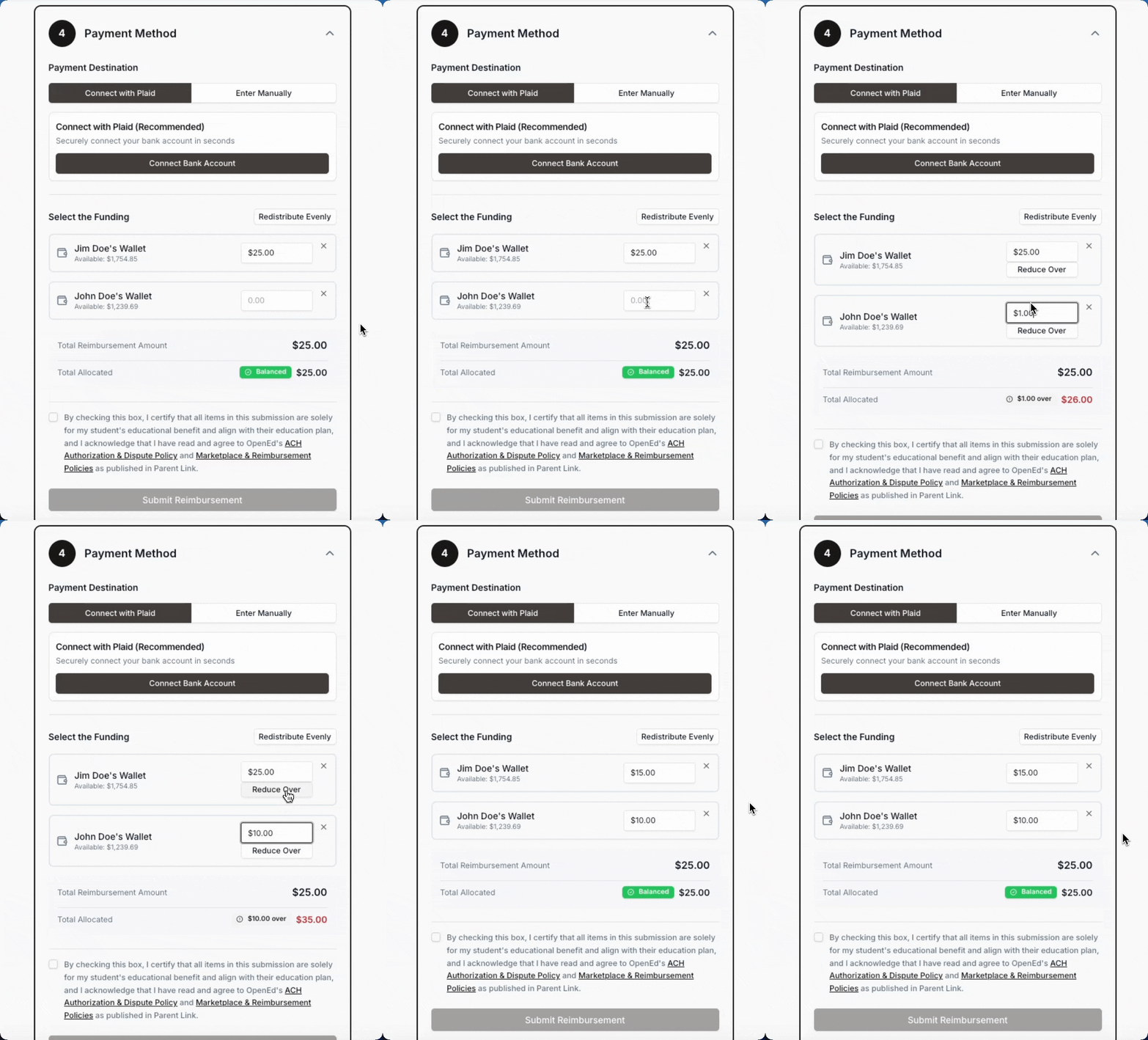
If you're splitting your request between multiple students, you can divide up the reimbursement amount however you want.
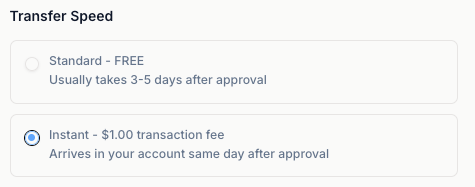
Want to get your reimbursement right away?
For a $1 fee (which is taken from your reimbursement total), you can choose the Instant transfer option to receive your reimbursement on the same day that your reimbursement is approved!
Keep in mind: If your bank doesn't support real-time payments, you won't see this instant transfer option. See a list of banks that support real-time payments here.
Edit, Cancel, or Resubmit Your Requests
Want to make a change after you submit your reimbursement? Need to resubmit a rejected or cancelled request? No problem!
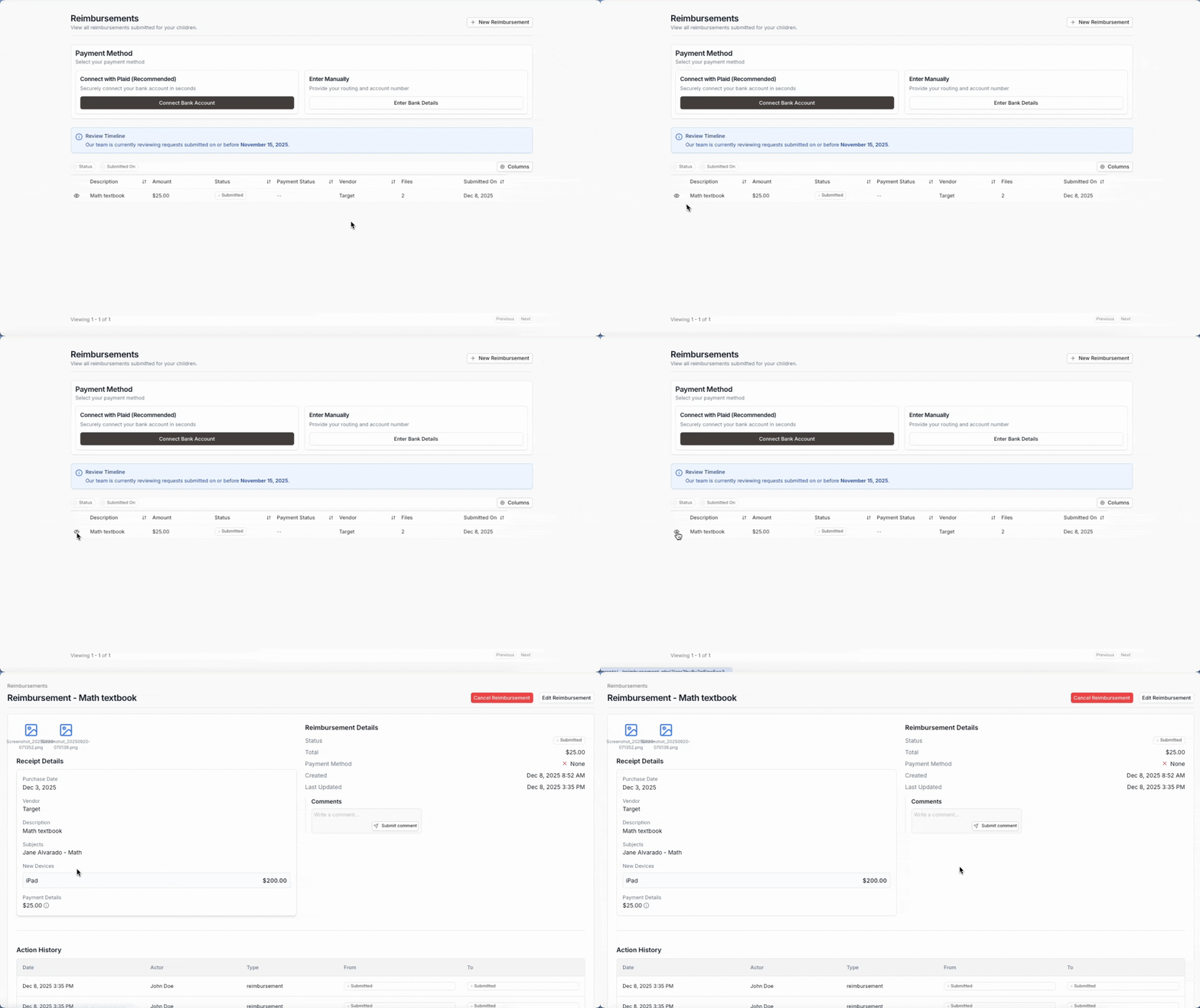
On the Reimbursements page, click on the eye-shaped icon to the left of a reimbursement to view the details.
If your request is still pending, you'll see two buttons in the top right corner: Edit Reimbursement or Cancel Reimbursement.
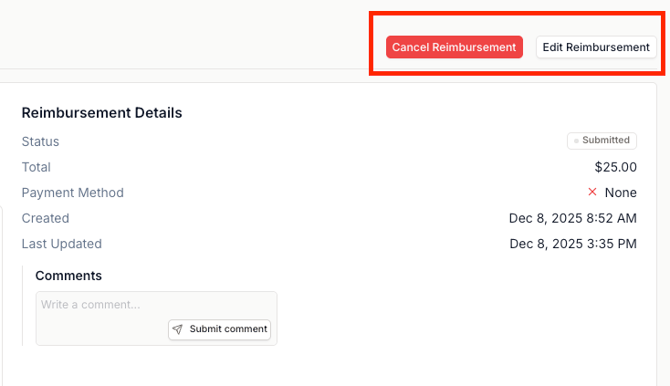
To cancel your request, click Cancel Reimbursement.
To edit a pending request or to resubmit a rejected/cancelled request, click Edit Reimbursement.
Then, make any necessary edits (like uploading an additional file or adjusting your wording).
To make sure our system registers the change, edit the Line Item or Description field - like adding the word "Edited," or simply entering an extra space.
If everything saved correctly, you should see a bright red Cancel Reimbursement button in the top right corner; the reimbursement's status should also change to Submitted.
Processing Timeline
The reimbursement process typically takes three weeks from the date that you submit or resubmit your request.
Once your request has been approved, the status will appear as approved in the Orders page.
Please note: The actual timeline for the funds to be deposited is contingent on the method disbursement that you've chosen, but can generally be expected within 2-3 business days.
Receipt Requirements
All receipts must be dated between April 1 – March 31.
All receipts must be provided by the vendor and include the following details:
-
Date (including the year!)
-
Description of item(s) purchased
-
Price paid
-
Payment type
-
Vendor contact information (phone or email)
If a receipt includes resources for multiple students and/or subjects, please clearly label which items correspond to each student and subject.
If you're submitting a reimbursement request for co-op fees, please ensure that the documentation clearly lists the specific classes the student is enrolled in and, if possible, includes a link to the program’s website or flyer with additional course details.
Please note: As part of our reimbursement process, our team may contact a parent or vendor to request additional proof of payment or to verify details (like confirming a shipping address or a state of residency)—especially for cash transactions. This step helps ensure the accuracy and integrity of all reimbursements. If we’re unable to sufficiently verify a transaction, the request may not be approved.
To help avoid delays or denials: We strongly discourage cash payments. If paying with cash is the only available option, please ensure that the receipt includes all necessary details—such as the vendor’s contact information, date, itemized list of purchases, and payment confirmation. OpenEd may require additional verification to process these requests.