.png?width=250&height=59&name=OpenEd_logo_noborder%20(1).png)
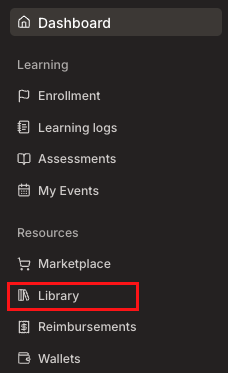
After the start of the school year, you’ll see a Library menu option appear in the lefthand sidebar of the OpenEd platform.
What To Expect From Your Student’s Library
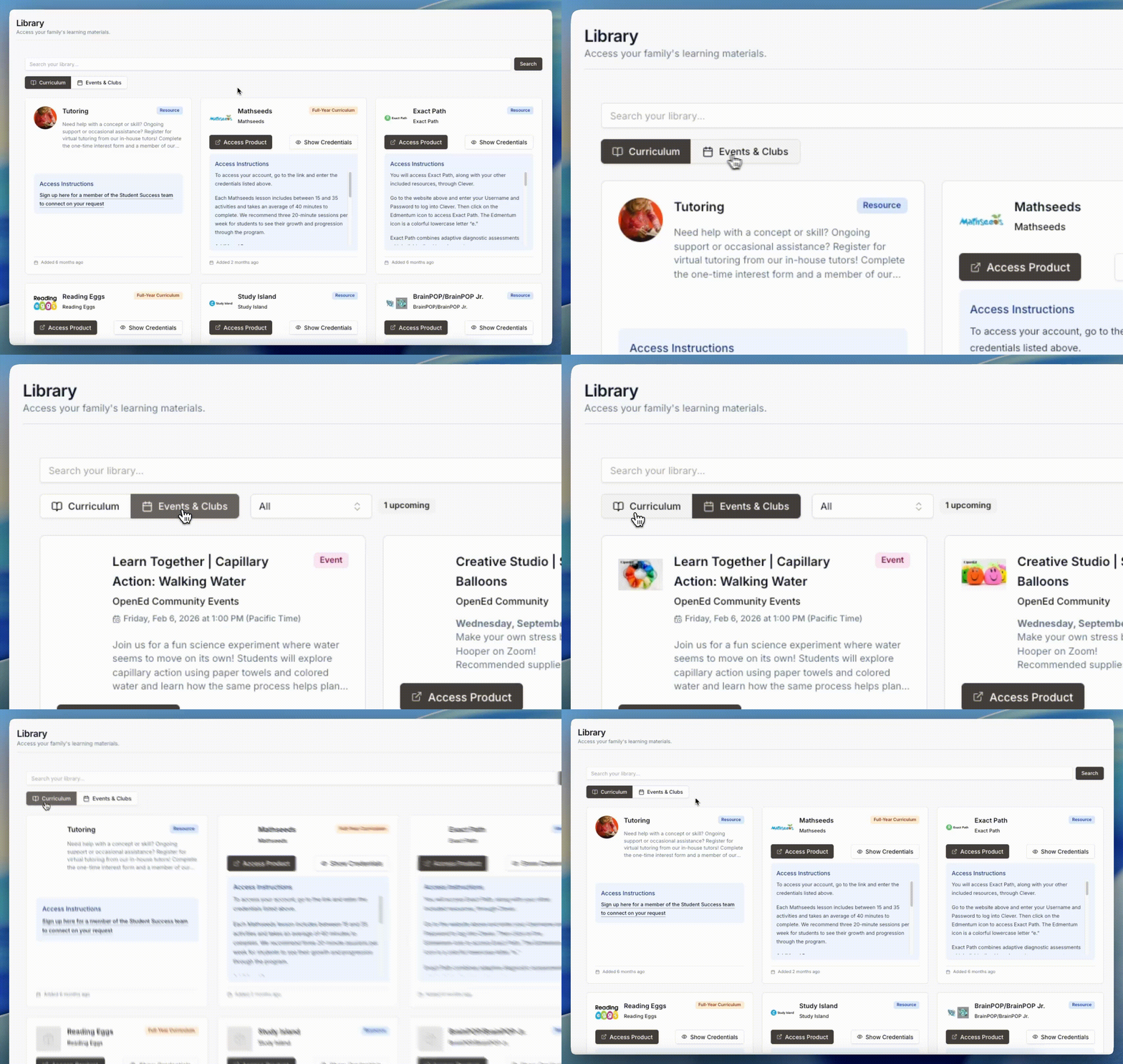
On the Library page, you’ll see a separate tile for each of your student’s resources.
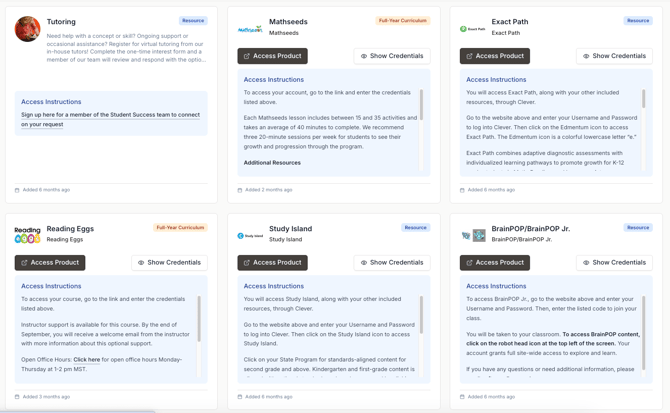
These tiles include access instructions to give you some guidance about how to use each resource.
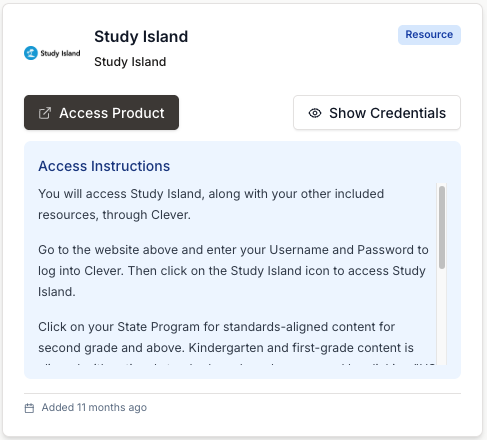
They also include two buttons at the top of the tile:
An Access Product button, which will take you directly to the resource’s external website.
A Show Credentials button, which will show you your student’s username and password for the resource.
Keeping Track Of Your Student’s Resources
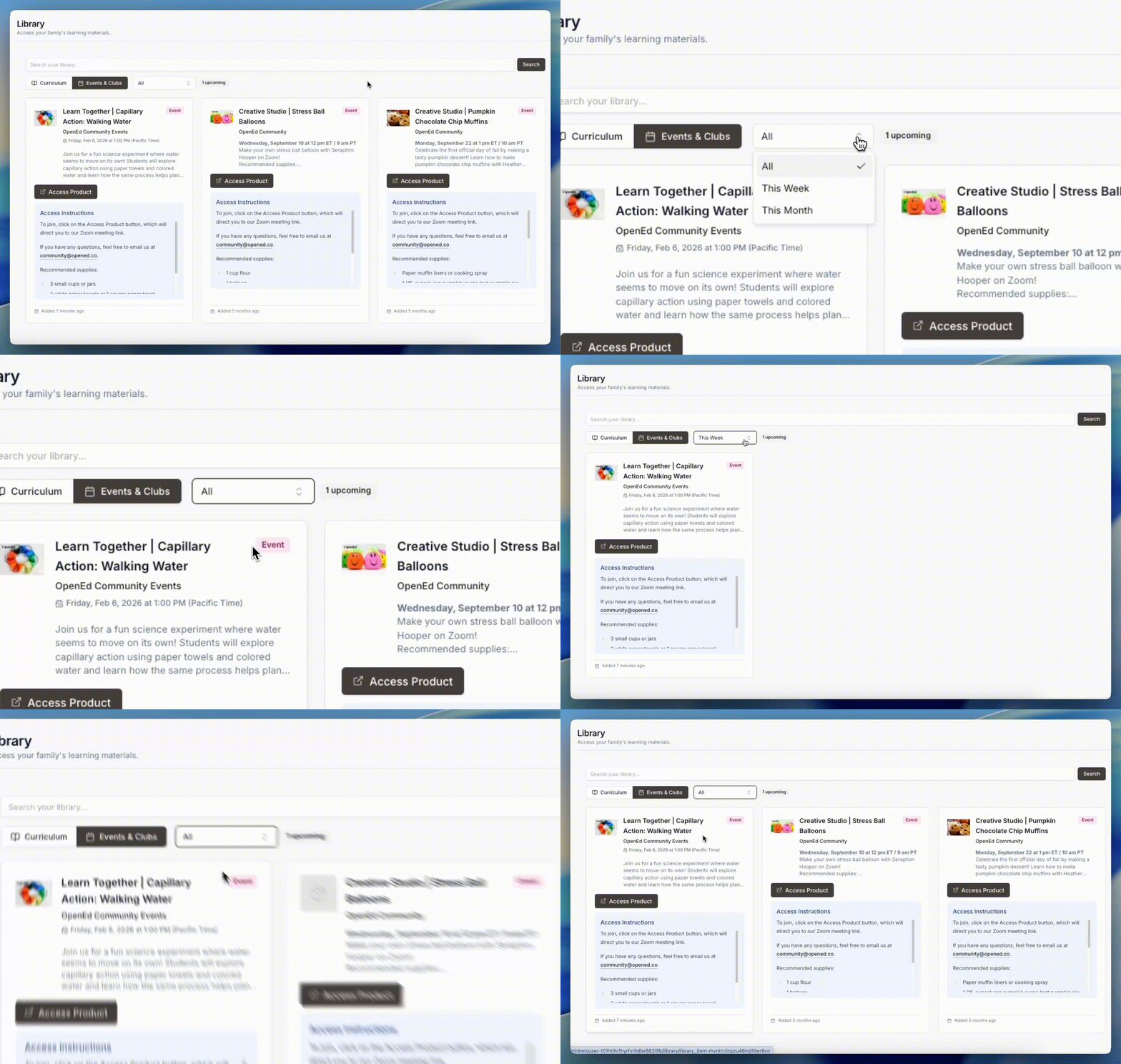
If you've selected Events & Clubs, you'll also see a dropdown menu that lets you decide the time range of info to view.
You can choose between viewing all events/clubs; events/clubs taking place this week; or events/clubs taking place this month.
Included Resources
Your student will start the school year with a few free resources already loaded into their library.
These resources include Exact Path, Study Island, and BrainPOP/BrainPOP Jr.
To access all three of these resources, your student will use a platform called Clever.
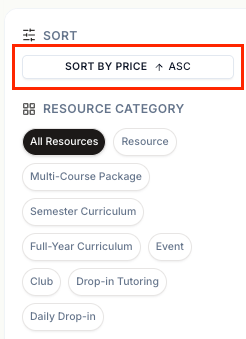
Interested in more free resources? Head over to the marketplace and sort by price to view all of our free offerings.