.png?width=250&height=59&name=OpenEd_logo_noborder%20(1).png)
To demonstrate your student’s active participation in the program, they’ll be asked to submit a weekly learning log – a short summary of what they learned throughout the week.
Learning logs are a great way to track your student’s success over the school year. They’re also an easy-to-manage accountability tool, demonstrating the hard work that your student is putting into the subjects listed on their education plan.
Each week, your student’s teacher will review their learning log and send back some supportive feedback. You can view their teacher’s feedback through the Learning logs menu option in the OpenEd platform. (This menu option will only appear once the school year starts.)
More of a visual learner? Watch this quick diploma-seeking learning log overview video!
How It Works
Learning logs can be submitted anytime during the week. You’ll be able to access each learning log up to 21 days before it’s due. Each log will be due on the following Monday by 11:59 PM.
Example: If a learning log starts on Monday, September 8th, then it’ll be due on Monday, September 15th – one week later.
We strongly encourage students to submit their own learning logs by logging into the platform themselves, but you can also submit the log for your student if necessary.
How To Submit A Learning Log
After logging in, click on the Learning logs menu option from the lefthand sidebar.
On this page, you can see all of your student’s upcoming learning logs, their due dates, and their status.
Through the Teacher Feedback box on the right side of the screen, you can view any recent feedback that your student’s teacher has left on their learning logs.
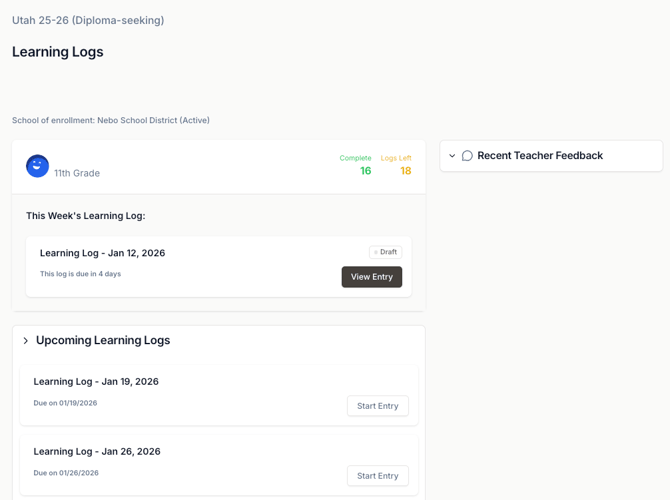
Click on a learning log to open it.
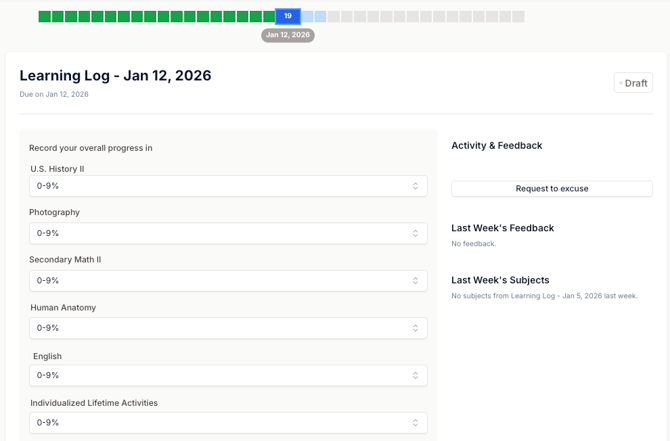
On the log, your student will be asked to report on their progress in each of their subjects.
They'll be able to select from a dropdown menu of percentage options: 0-9%, 10-19%, 20-29%, etc.
This number should reflect what percentage of the entire course they've completed so far. For example, during the first week of school, your student should select 0-9% since they've just started!
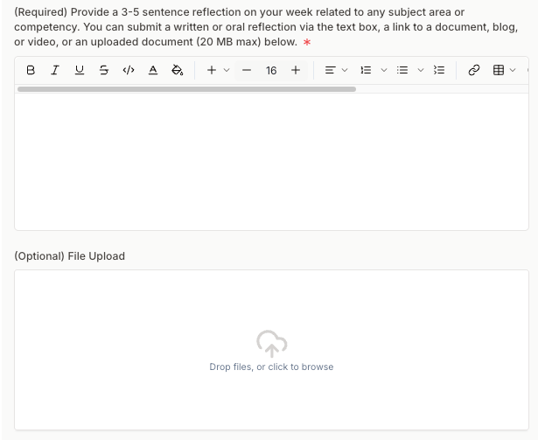
Then, your student will be asked to provide a 3-5 sentence summary of what they learned this week.
Keep in mind: An agenda or list of learning won't count as a reflection unless it's accompanied by a brief explanation.
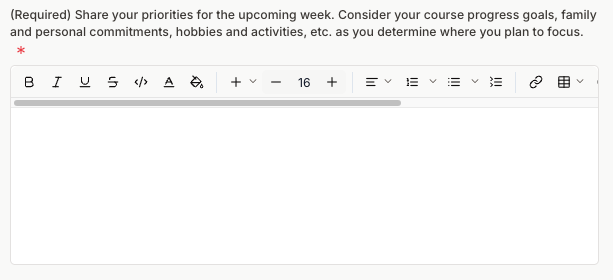
They'll also be asked to share their priorities for the week ahead. This helps their homeroom teacher know what they're going to be focusing on.
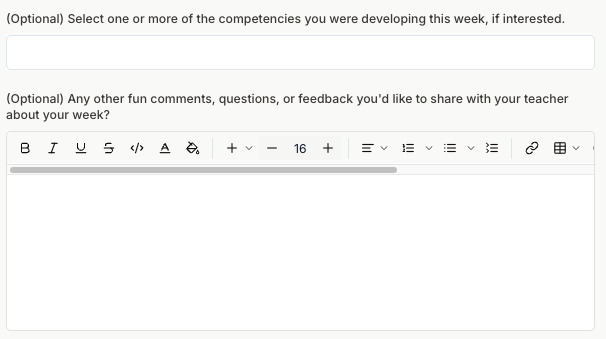
If your student wants to, they can check off the core competencies they worked on over the past week, or share some photos or work samples with their teacher – but both of these are totally optional.
Learning Log Statuses
You’ll see a few different statuses on your student’s learning logs.
Here’s a quick guide on what they mean:
| Status | Meaning |
| Action Required | Your student’s learning log is overdue. Please submit it as soon as possible. |
| Completed | Your student’s teacher has graded this log as complete. You’re all set! |
| Draft | The learning log hasn’t been submitted yet. Any changes your student makes will be automatically saved. |
| Excuse Requested | You’ve requested this log as excused, but your student’s teacher hasn’t approved the excuse yet. (Once they do, the status will change to “Completed.”) |
| Excused | Your student’s teacher has approved your request to excuse this learning log. |
| Submitted | The learning log has been submitted to your student’s teacher, but it hasn’t been graded yet. |
Requesting A Learning Log As Excused
Please note: Students can have a maximum of four excused logs per school year.
To request that a learning log be excused, click on the Request an Excuse button under the Activity & Feedback section of the screen.

After you request your excuse, a comment box will appear.

Use this comment box to let your teacher know why you’re requesting the excuse.

How Learning Logs Affect Enrollment
For your student to stay enrolled in good standing in the program, they’ll need to submit all of their learning logs.
Our team is invested in your student’s progress – we want them to succeed! If your student has a missing or incomplete log, our interventions team might reach out to see how we can help.
If your student’s logs are consistently late or incomplete, they might be at risk of being withdrawn from the program.
Stay informed: Review our Withdrawal/Repayment Policy for students who withdraw before the end of the school year.